
Introduction Last updated: 21 December 2024

Welcome to Purchase-Extension documentation and thank you for choosing Purchase-Extension.

This documentation is here to guide you through installing the project. It includes detailed, step-by-step instructions to make the installation easy. Please take the time to read the guide carefully and follow each step. By doing so, you’ll be able to set up the project smoothly and without any issues.


We sincerely thank you for purchasing our product on CodeCanyon. Your trust in our offering is highly valued.

  • Created: 02 November 2025
  • Updated: 02 November 2025

If you have any questions not addressed in this help file, please feel free to reach out to us via the Item Item Support Page.

System Requirements 1.1

The required specifications for the Admin Panel.

  • PHP Version: 8.2.x
    PHP Version 8.2.x must be installed on your system to proceed further.

  • MySQL Version: 8.x
    MySQL Version 8.x must be installed on your system to proceed further.

  • Laravel Version: 10.x
    Laravel Version 10.x must be installed on your system to proceed further.

  • Composer Version: 2.7.x
    Composer Version 2.7.x must be installed on your system to proceed further.
  • The required specifications for the Flutter App.

  • JDK Version: 21.0.5
    Java Version 21 must be installed on your system to proceed further.

  • Flutter SDK: 3.35.3
    Flutter SDK 3.35.3 must be installed on your system to proceed further.
  • Dart Version: 3.5.0
    Dart Version 3.5.0 must be installed on your system to proceed further.
  • Android SDK: 35.0.0
    Android Version 2022.3 must be installed on your system to proceed further.
  • Suggested Server 1.2

    DigitalOcean

    DigitalOcean

    Lorem ipsum dolor sit amet, consectetur adipisicing elit.

    Read More
    Hostinger

    Hostinger

    Lorem ipsum dolor sit amet, consectetur adipisicing elit.

    Read More
    Namecheap

    Namecheap

    Lorem ipsum dolor sit amet, consectetur adipisicing elit.

    Read More
    GoDaddy

    GoDaddy

    Lorem ipsum dolor sit amet, consectetur adipisicing elit.

    Read More
    Google Cloud

    Google Cloud

    Lorem ipsum dolor sit amet, consectetur adipisicing elit.

    Read More
    InMotio-Hosting

    InMotion Hosting

    Lorem ipsum dolor sit amet, consectetur adipisicing elit.

    Read More

    How to Install an Addon (Code) via the Admin Panel

    Purchase Extension is an advanced stock and inventory management module for ReadyCommerce and ReadyGrocery. It helps you track purchases, manage suppliers, and maintain accurate stock levels effortlessly — ensuring complete control over your business inventory from a single dashboard.

    Step-by-step instructions to upload and install the addon ZIP through the admin panel Marketplace. Read the Filename requirement carefully.

    Prerequisites

    • Admin credentials: You must have a valid admin account for the project.

    • Addon ZIP: Obtain the addon ZIP from the authorized source (e.g. CodeCanyon).

    • Filename requirement: The ZIP file must be named Purchase.zip. Do not rename the file.

    Step-by-Step Installation

    Log in to the Admin Panel

    Open the admin panel in your browser and sign in using your admin username and password.

    Example:

    Example-01

    Open Marketplace

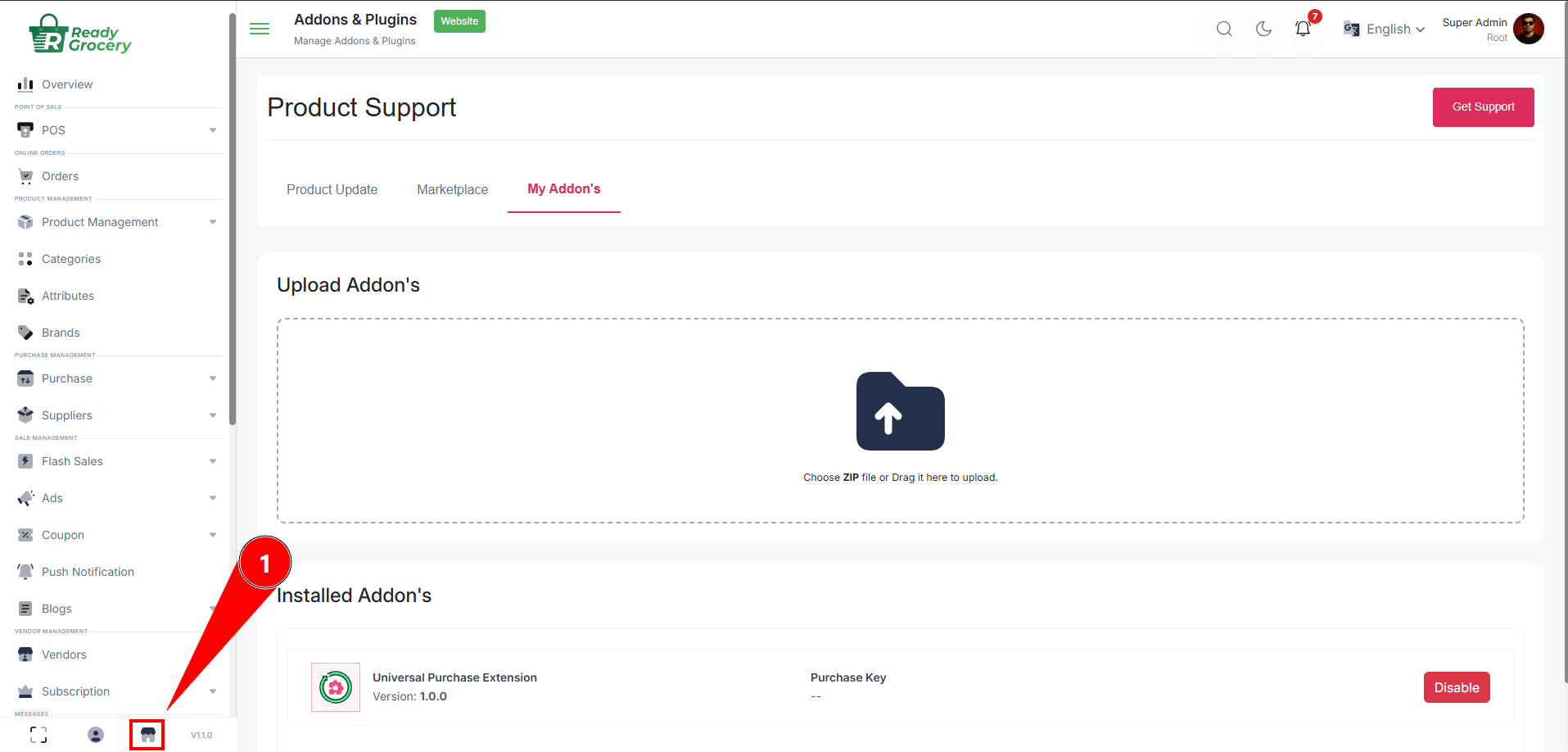
    From the admin panel sidebar or footer, click Marketplace to open the Marketplace page.

    Example:

    Example-01

    Go to My Addons

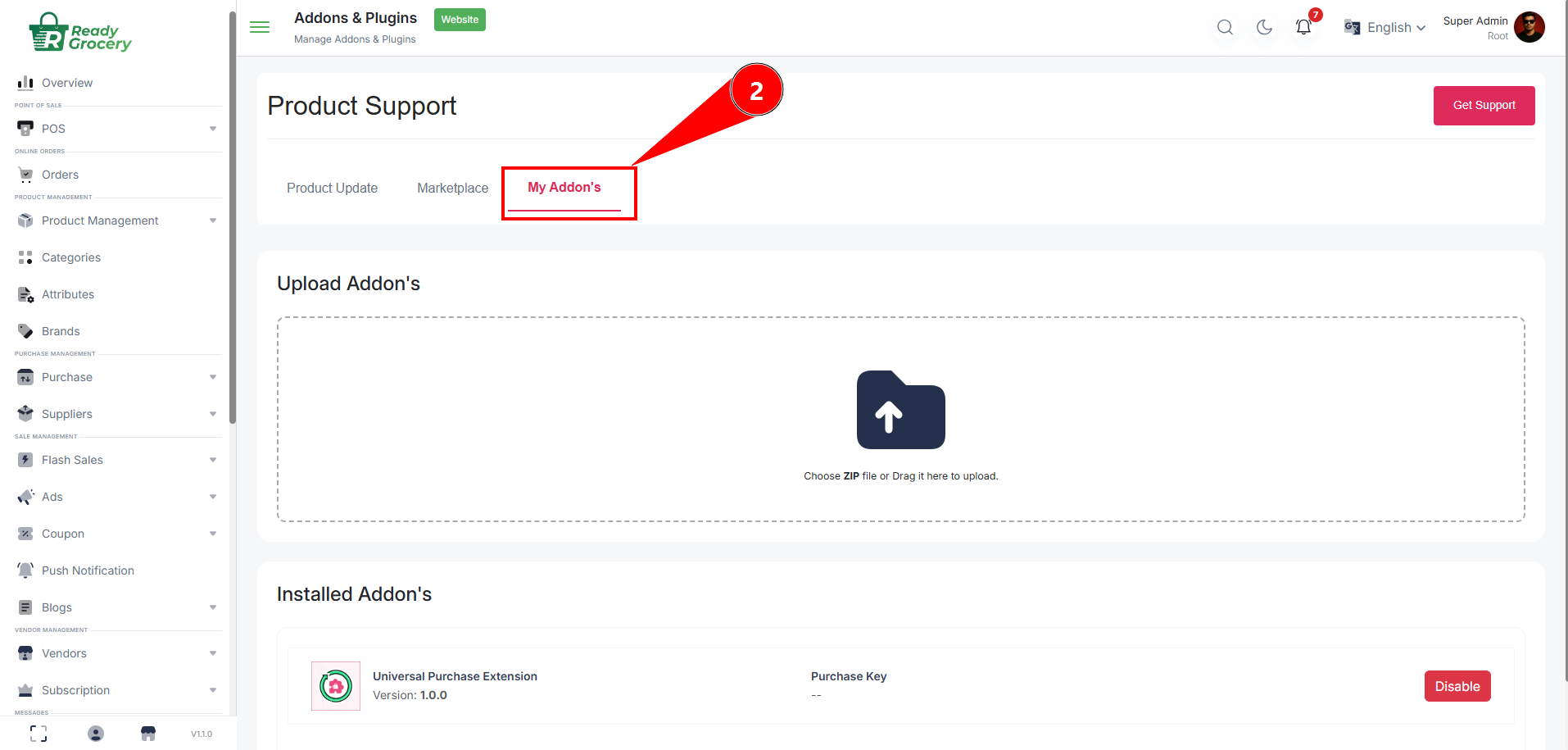
    At the top of the Marketplace page, you’ll see buttons like Product, Update, and My Addons. Click My Addons.

    Example:

    Example-01

    Open the Upload Interface

    On the My Addons page, locate the Upload option (file upload control or dropdown). Click to open the file chooser.

    Select the ZIP File

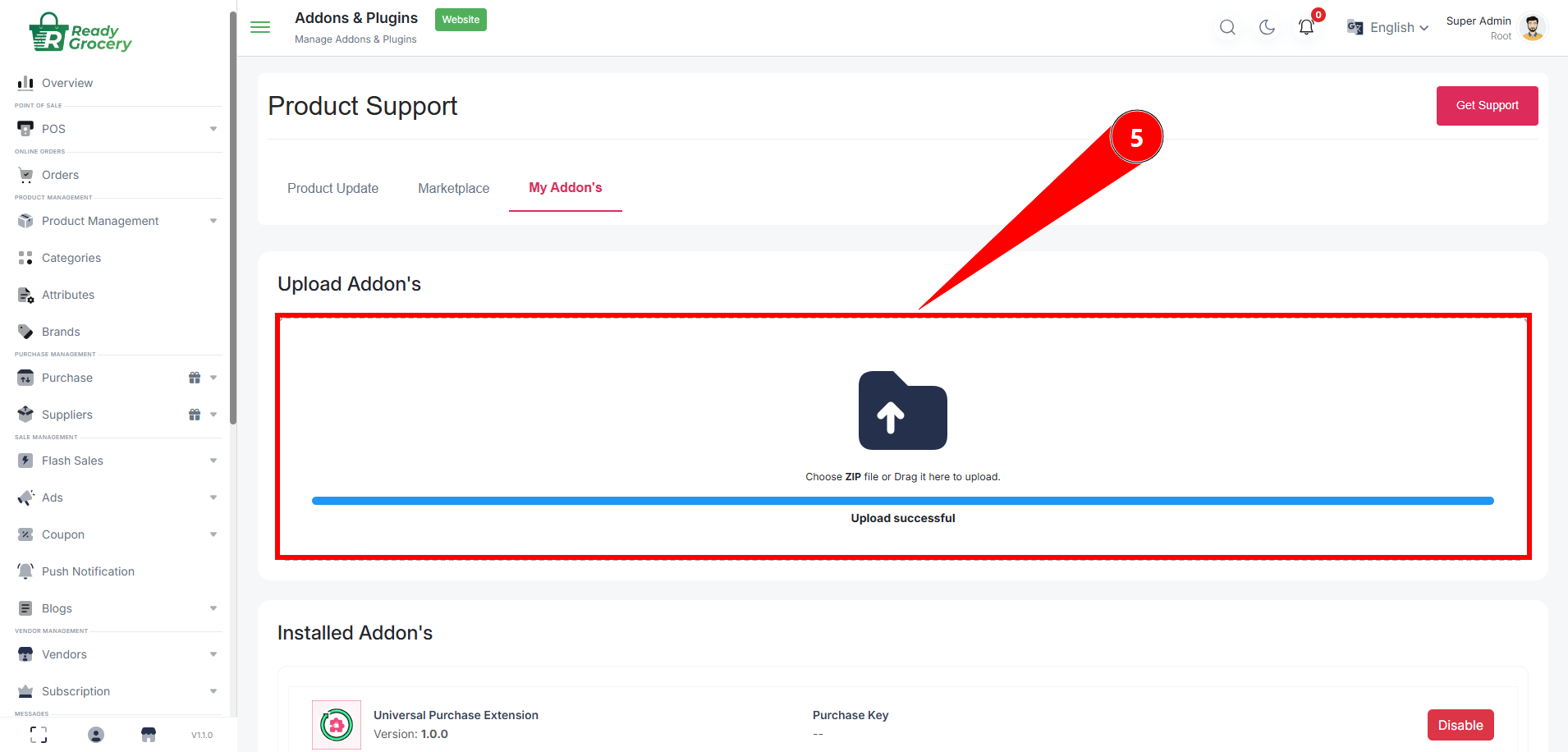
    Choose the Purchase.zip file from your computer. Do not rename the file — the installer requires the exact filename.

    Example:

    Example-01

    Upload and Confirm

    After selecting the file, click Upload or press Enter. The system will begin receiving and validating your addon file.

    Example:

    Example-01

    Automatic Installation

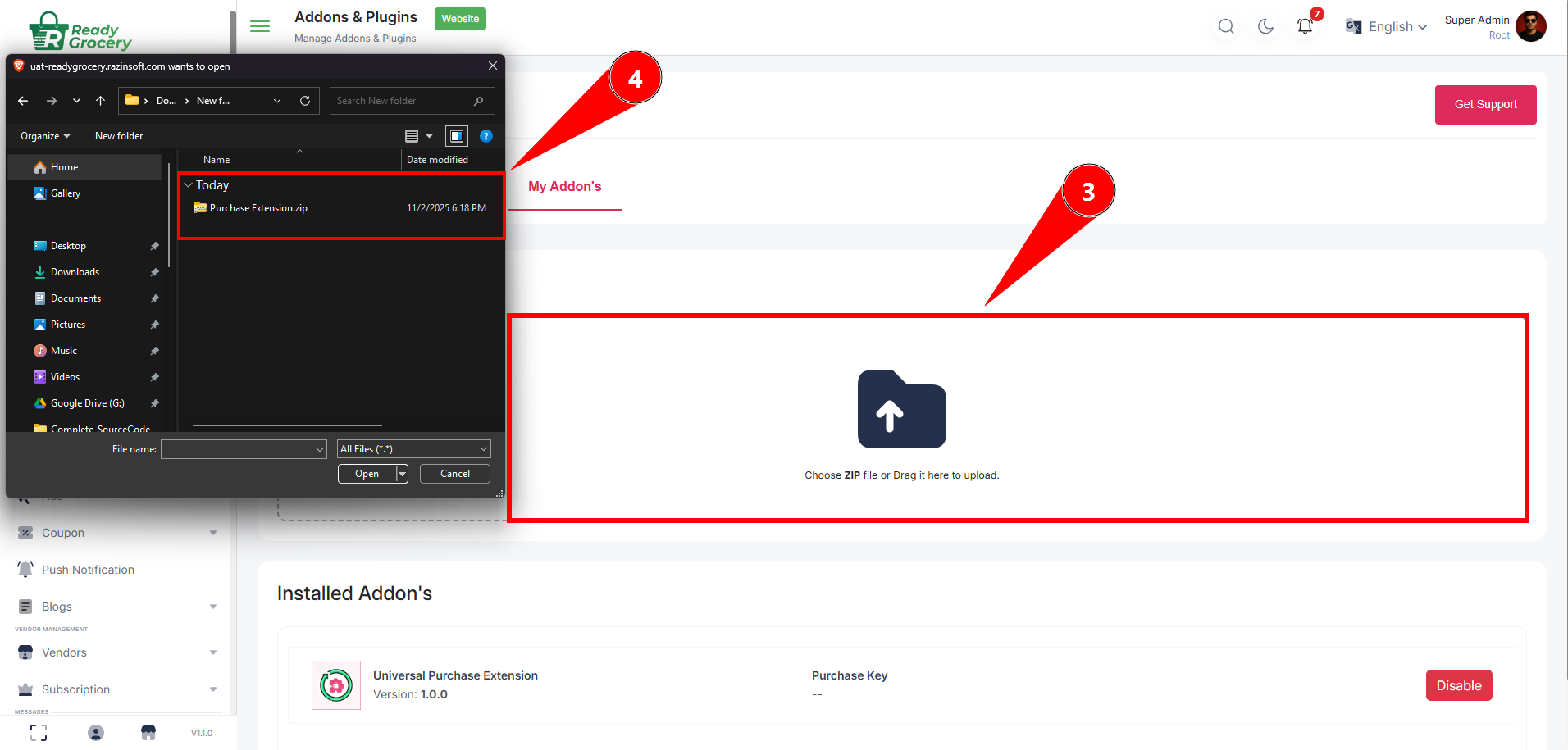
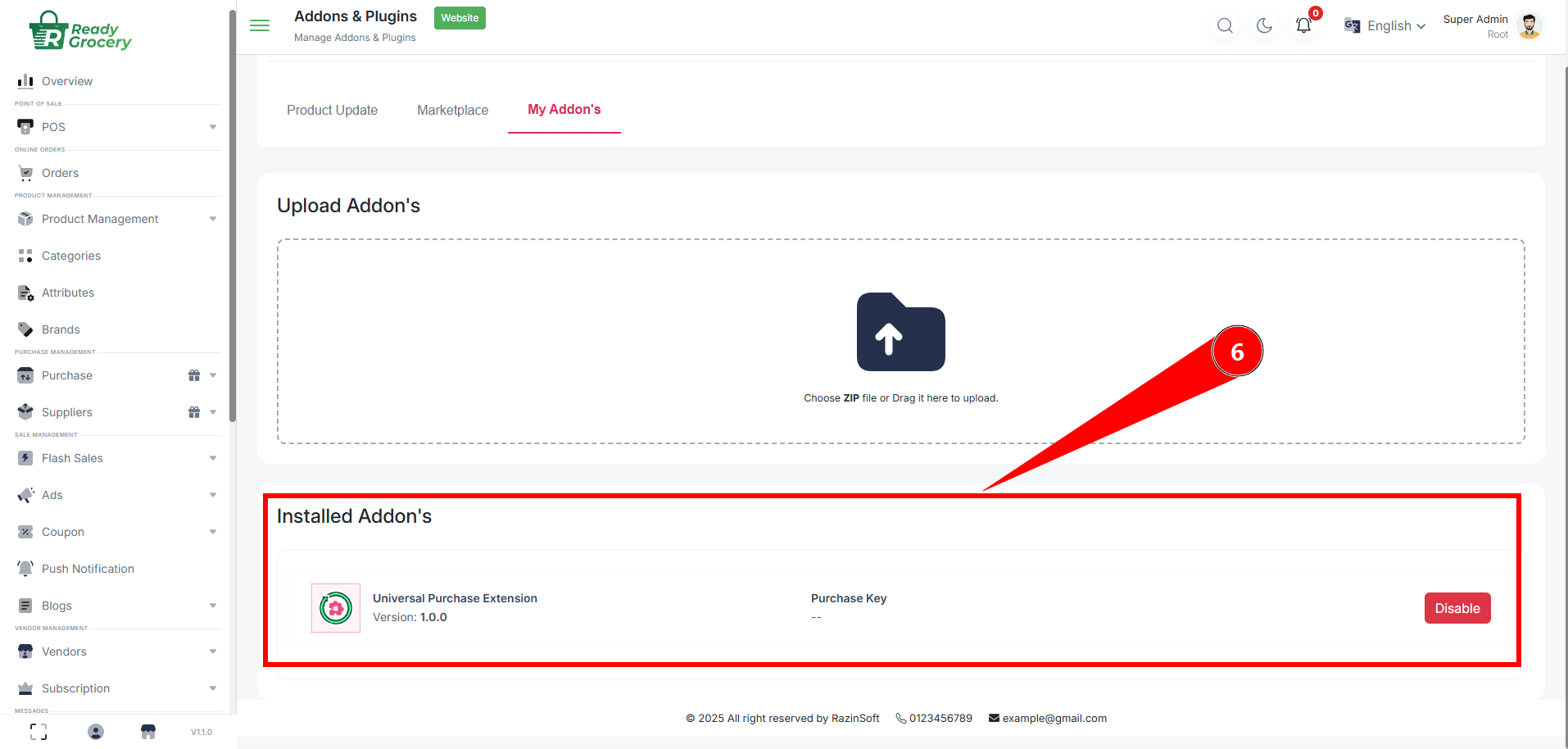
    Once the correct ZIP is uploaded, the system will automatically install the addon. A success message will appear confirming the installation.

    Example:

    Example-01

    Verification

    • Check Installed Addons: After upload completes, verify the addon appears in the Installed Addons list (or My Addons page).

    • Quick functional check: Confirm the addon’s basic functionality in the area/module it affects.

    Troubleshooting

    Upload fails / error shown — Verify the filename is exactly Purchase.zip. Ensure the ZIP is not corrupted and was fully downloaded. Confirm you have sufficient server permissions and disk space.

    Installation does not start automatically — Re-upload the file (keep the name Purchase.zip). Check server logs or admin notifications for error messages.

    Addon not working after install — Clear caches (application/browser). Verify addon requirements (PHP version, PHP extensions, other dependencies) and enable them if needed.

    Important Notes

    • Do not rename the ZIP file — renaming prevents the installer from recognizing it.

    • Use trusted sources only: Install packages only from authorized vendors.

    Document prepared for admin operations. Keep this guide accessible for future addon installations.

    Designed with love by Razinsoft for developers